How to See Who Did What: Tracking Household Care with Multiple Carers
When more than one person looks after a pet — or when there's more than one pet, each with their own routine — it doesn't take long before nobody's quite sure what's already been done. Our Little Paws keeps a running log of every piece of care, so instead of guessing or asking around, you can just look.
Updated 27 August 2026 · For every plan
Finding the "Who did what" log
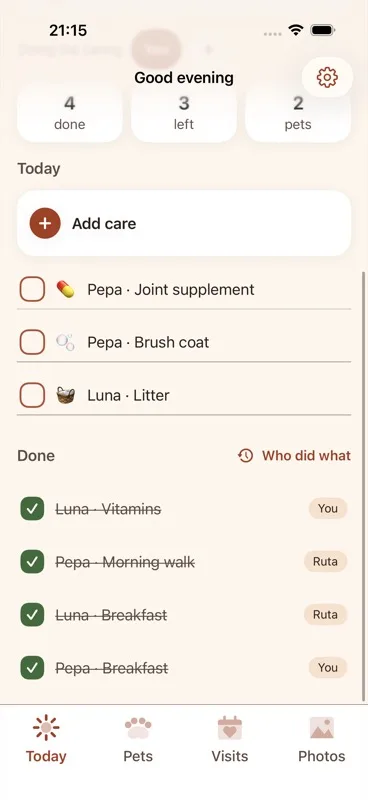
Open the Today tab. Once you've ticked off at least one thing for the day, a "Who did what" button appears next to the "Done" section header.
The Today tab's "Done" section header, with the "Who did what" button visible next to it, after one or more care items have been checked off.
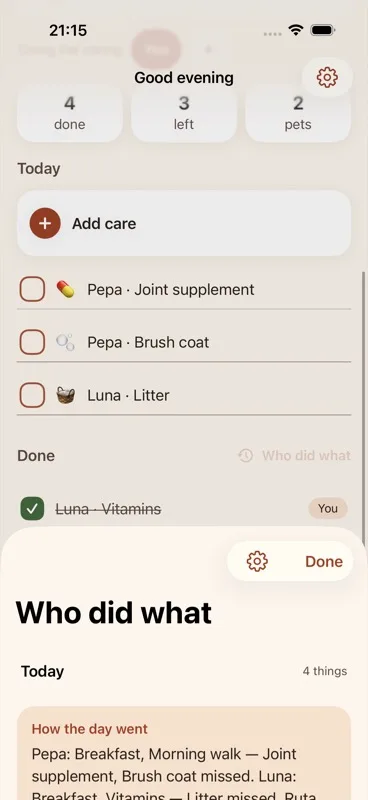
Tap "Who did what" to open the full care history screen.
The "Who did what" screen opening, showing the transition from the Today tab.
Reading the day-by-day household care history
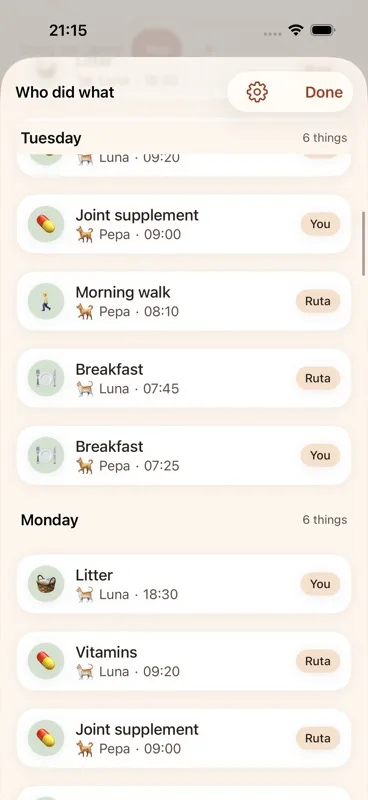
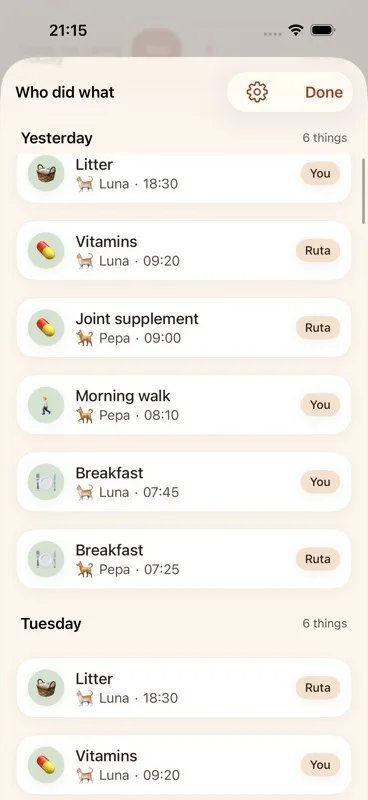
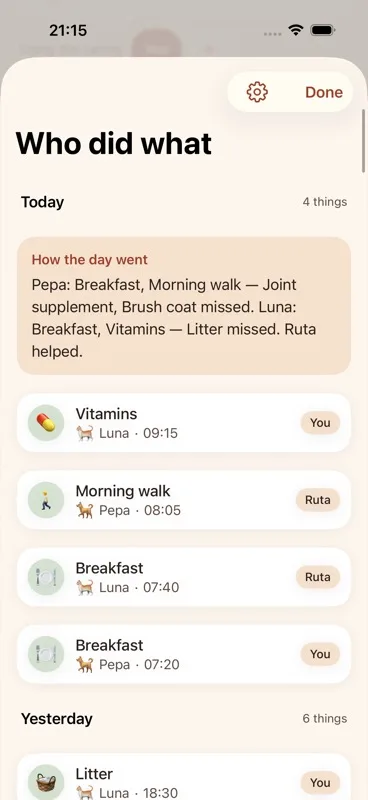
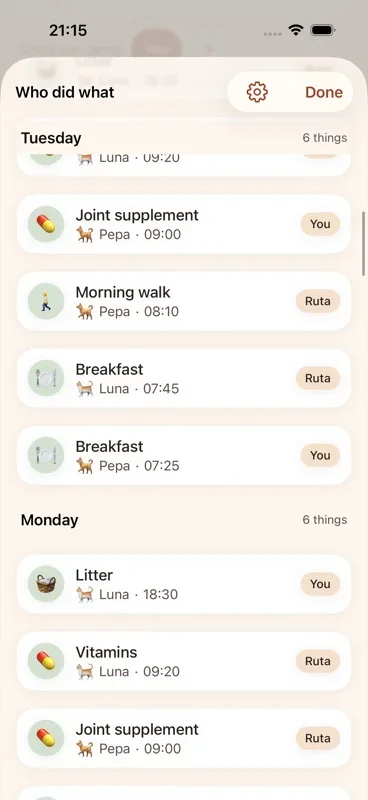
Entries are grouped by day, with the most recent day at the top: "Today", then "Yesterday", then the weekday name for each day further back in the past week, and finally a day/month date for anything older than that.
The "Who did what" screen with several day groups visible — "Today", "Yesterday", a weekday name, and a day/month date further down the list.
If a day has one, a "How the day went" card sits at the top of that day's group. It's a single plain-language sentence summarizing the day — the same sentence used in the optional evening notification — covering what was done for each pet, what got missed, and who helped out.
A "How the day went" summary card at the top of a day's group, showing one written sentence about the day's care.
Below the summary, each individual care entry shows:
the care's emoji in a circle
what was done (for example, "Breakfast")
which pet it was for, shown with the pet's face and name, and the time it happened
on the right, a capsule with the name of whoever did it — the carer name that was selected on the Today tab at the moment the item was ticked off
A single day's list of care entries, each showing its emoji, the care done, the pet's face/name and time, and a name capsule on the right.
If nothing has been logged yet at all, the screen shows an empty state that reads "Nothing yet", explaining that ticking something off on the Today tab is what makes it appear here.
ScreenshotThe empty state reading "Nothing yet" with its explanatory text, shown when no care has been logged.
What the free plan shows — and what stays saved
On the free plan, the log only shows today plus the last 7 days. Nothing is ever deleted — older days are simply held back from view. A locked row at the bottom of the list reads "[N] earlier days", with the note "It is all still here. The full version shows every day." Tapping this row opens the paywall.
The locked "[N] earlier days" row at the bottom of the history list, with its explanatory note underneath.
If you're a carer using someone else's shared household, this locked row and its paywall link never appear for you. The subscription belongs to whoever owns the pets, so a carer is never asked to pay for someone else's care history.
ScreenshotThe "Who did what" screen as seen by a carer on a shared household, showing the full history with no locked row at the bottom.
Closing the screen
Tap "Done" in the toolbar at any time to close the screen and return to the Today tab.
The toolbar's "Done" button at the top of the "Who did what" screen.
For how carer names are added, switched, or renamed on the Today tab — the "Doing the caring" row that decides whose name gets attached to each entry — see the guide on adding carers. For the full details of what the paid plan unlocks on this screen, see the guide on the full version. Back to the Today tab guide, or see how to
add a pet.
Quick answers
Frequently asked
What does the locked "[N] earlier days" row mean?
It means the free plan is only showing today plus the last 7 days. Nothing is deleted — the rest of the history is still there and unlocks with the full version.
Does a pet sitter or carer have to pay to see the history?
No. A carer added to someone else's household always sees the full "Who did what" history with no locked row and no paywall — only the household owner's subscription matters.
![The locked "[N] earlier days" row at the bottom of the history list, with its explanatory note underneath.](/assets/img/guides/locked-row.webp)